Creating Collision Geometry
Collision geometry can be created to represent the geometry of a component for collision detection purposes. Collision geometry can be significantly simpler than the component's actual geometry, and therefore, it can significantly enhance the speed of collision calculation.
To create a collision geometry:
- Select the root node of a component from the Component Graph panel.
- On the MODELING tab, in the Geometry group, click the Tools arrow, and then under Collision Geometry, select Create Collision Geometry.
-
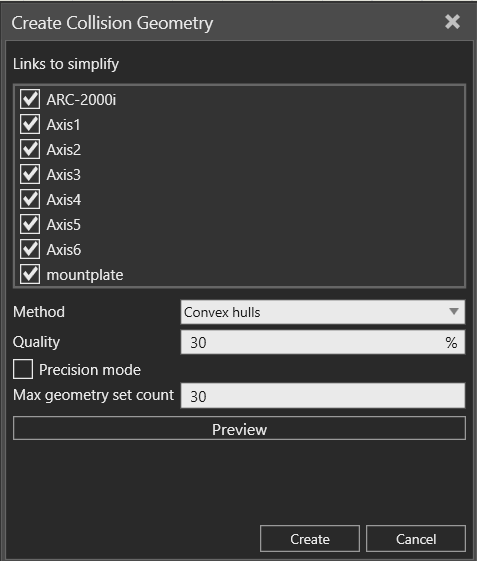
Define the parameters for your collision geometry in the Create Collision Geometry panel:
-
Links to simplify: Select the component links for which collision geometry will be generated.
-
Method:
-
Convex hulls: Generates one or more convex shapes that closely wrap the original geometry.
-
Blocks: Approximates the component using simple rectangular boxes.
-
-
Quality: Defines the level of detail retained from the original component geometry during simplification.
-
Precision mode: Increases the accuracy of the generated collision geometries by using more detailed calculations during the simplification process.
-
Max geometry set count: defines the maximum number of geometry sets that can be created per link when simplifying a component’s original geometry into collision geometry. A higher count creates more detailed collision geometry (closer to the original shape), while a lower count produces simpler shapes for faster collision calculations
-
-
Click Preview if you want to preview the collision geometries in the 3D world
-
Click Create to create the collision geometries.